I believe most people are like me — when it’s time to upload a cover after making a video, we like to just use a frame directly from the video as the cover.
But there’s a problem with this: many social media platforms now require different aspect ratios for video covers. And on the same platform, you often need to cater to both desktop and mobile views, which means you’ll need both landscape and portrait cover modes. That makes using a raw video screenshot as a cover pretty tricky.
Today, I’ll share how to use our website to create video covers that adapt to multiple scenarios using just one screenshot. I’ll also share some of my own little tips for making covers.
1. Understand Common Cover Aspect Ratios and the “Danger Zones”
The common portrait aspect ratio is 9:16, and the common landscape ratios are 16:9 and 4:3.
If you’re making a landscape cover, note that the left and right 10% of the area might be cropped by the platform. So avoid placing key text or your main subject in these zones.
Portrait covers are even trickier: the left and right 15% and the top and bottom 10% are all danger zones. The diversity of mobile screens is far more complex than desktops, so cover cropping is much more common.
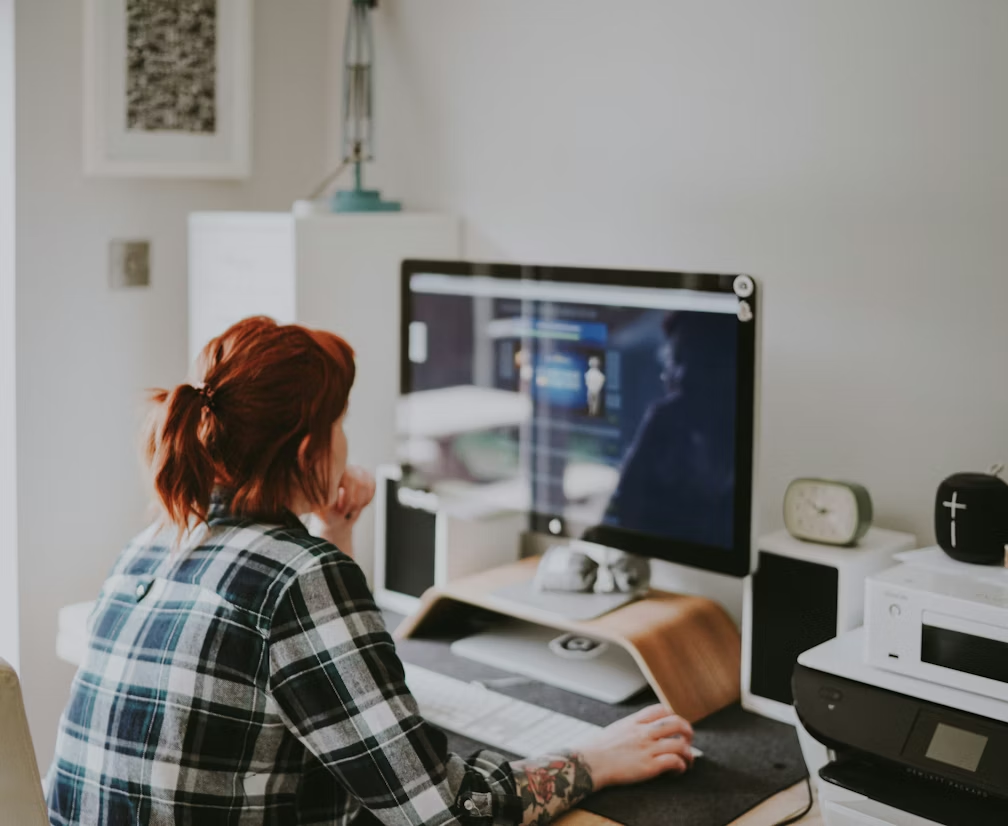
2. How to Pick a Good Screenshot from Your Video
1. Avoid empty shots or meaningless frames
Many people recommend using exaggerated frames to attract clicks, but I think that tactic isn’t as effective anymore — everyone is tired of it.
I believe a cover that makes people want to click nowadays needs to have a sense of story or spark curiosity.
2. Choose a clear frame whenever possible
If your cover shows a person’s face, it must not be blurry. If you really love a frame but it’s a bit out of focus or blurry, you can take that screenshot and try using an AI sharpening tool to fix it.
Of course, if the restored image looks too different from the actual video, don’t use it. This is a little trick I use often — make good use of AI tools.
3. Crop Using Our Website Tool
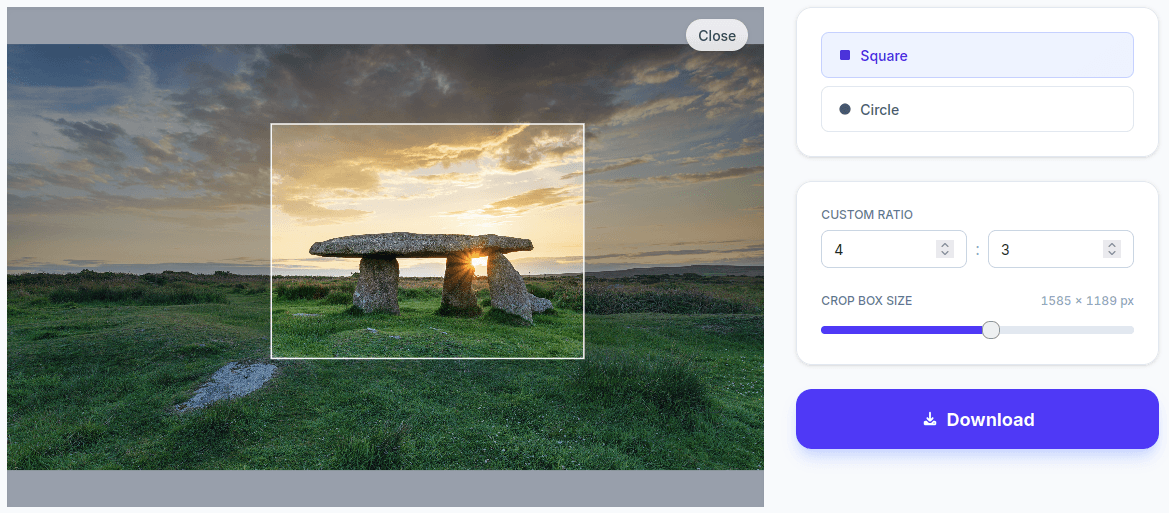
Via our Crop Page, you can crop a screenshot to 16:9, 9:16, or 4:3 ratios, and the result can be used directly as a cover.
However, you might run into a problem during cropping:
- You want a portrait cover from a landscape video → the height isn’t enough.
- You want a landscape cover from a portrait video → the width isn’t enough.
To solve this kind of cropping dilemma, you can refer to this article I wrote.
4. My Ultimate Lazy Hack (Key Point)
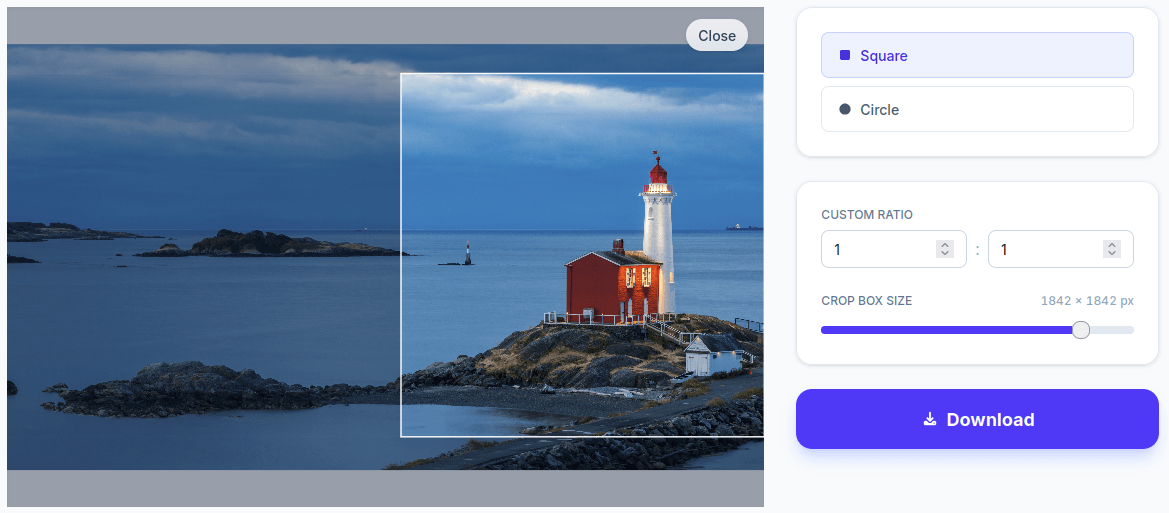
Finally, I’ll share a lazy method I use all the time: take just one screenshot, crop it once, and it’ll work for most video cover scenarios 90% of the time.
The condition is simple: your original video footage must be at least 2K, preferably 4K.
Steps:
- a. Grab a screenshot from your video.
- b. Use our Crop Page to crop it to a 1:1 square area.
- c. No matter whether the platform requires a landscape or portrait cover, upload this 1:1 square image and let the platform handle the cropping.
The only thing you need to do is make sure the main subject is centered and there’s enough empty space around it.
The resulting cover won’t be exceptionally polished, but it definitely won’t look bad — it’s a great lazy hack. If you don’t have super high standards for covers, this works perfectly fine for most situations.
These are the methods and tips I use for making video covers. I hope you find them helpful!