Crop Image Online
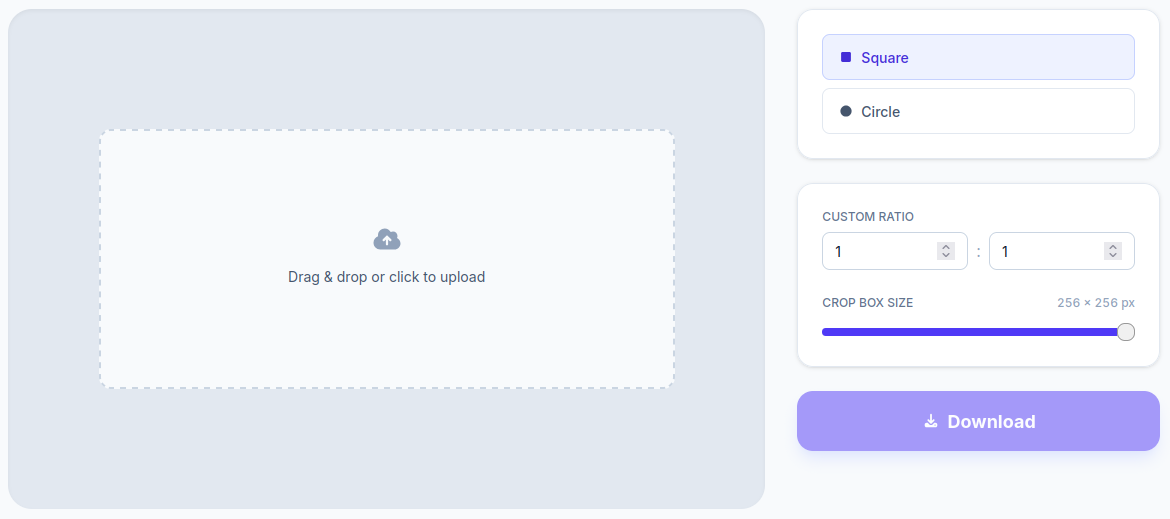
Crop image online without losing any quality. Whether you want a flawless circular cutout or a custom-ratio rectangle, it's fast, private, and incredibly easy to use.
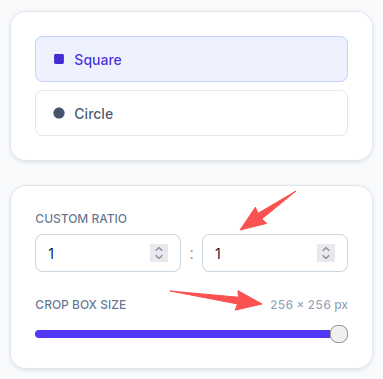
Custom Ratio
Crop Box Size
256 × 256 pxCrop Box Size
256 pxDrag & drop or click to upload
The Origin Story: An Awkward Profile Picture Fail
I originally built this page out of pure frustration with social media avatars. Different platforms have different demands—some require you to crop image circle, while others strictly use rectangles.
You might be thinking, “Doesn’t every app have a built-in crop tool?”
I used to think so too, until a disastrous experience on TikTok. I was testing out a few different photos to see which one looked best as a circular avatar. I was caught in a loop of uploading, adjusting, and uploading again. Suddenly, the app hit me with a warning: “You’ve reached your avatar upload limit for today.”
I was stunned. Thanks to that limit, I was stuck with a terrible, halfway-adjusted profile picture for 24 agonizing hours before I was allowed to change it. It was incredibly embarrassing.
Extracting the “Golden Corner” from Group Shots
The problem goes beyond just selfies. More often than not, the absolute best picture of you isn’t a staged headshot—it’s a candid moment or a tiny section of a group photo. You just want to isolate that specific “golden corner” to use as your avatar.
Unfortunately, trying to crop image to circle natively inside most social apps is a nightmare. You can’t precisely position the frame, and freely adjusting the zoom or aspect ratio is practically impossible.
Why This Image Cropper Stands Out
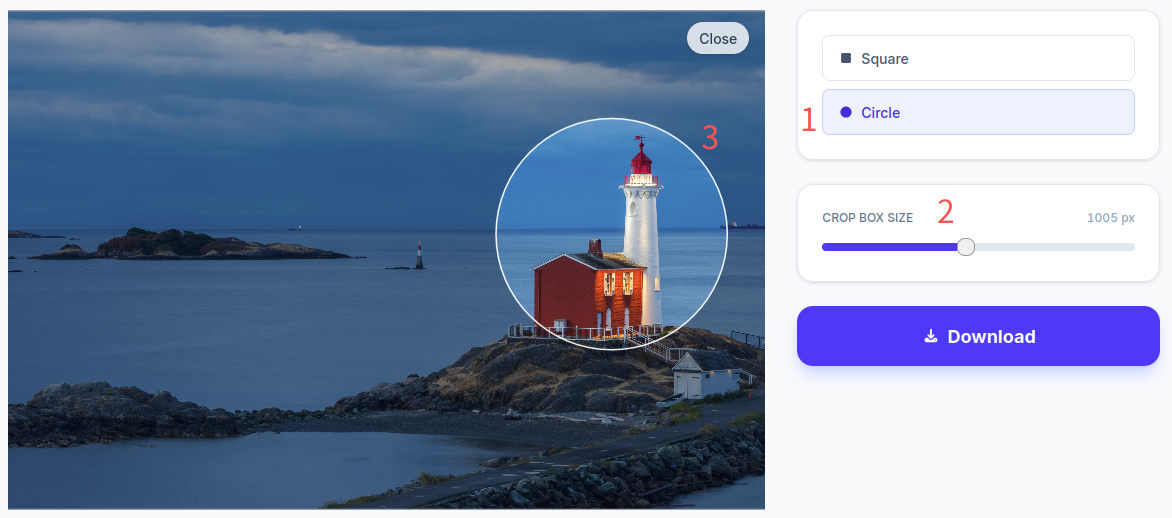
That’s exactly why I built this website. The biggest advantage here isn’t just that it can circle crop image or make a rectangle—it’s the absolute freedom of movement.
- Drag-and-Drop Precision: You can freely drag the cropping area anywhere over your photo using your mouse.
- Total Customization: Need a round avatar? You can easily adjust the diameter. Need a rectangle? You can tweak both the size and the aspect ratio on the fly. Everything happens in real-time.
- Zero Quality Loss: This is the feature I spent the most time optimizing. When you use this tool to crop image to size, the output retains the exact same clarity as the original. For example, if you want a 300×300 pixel area, as long as your source image is large enough, you will get a crisp, true 300×300 image. I’ve tried too many sites to crop image free, only to find they ruthlessly compress the file or magically shrink the dimensions. My rule is simple: the cropped version must be just as sharp as the original.
An Unexpected Hack: DIY Custom Photo Walls
Beyond digital avatars, this online crop image utility has become a staple in my own home decor.
My wife loves creating photo walls, hanging up pictures we take together each year. But having every single photo exactly the same size gets boring fast. To mix things up, she uses this tool to circle crop image online and cut out various rectangular shapes with different aspect ratios.
We find the most captivating part of a photo, crop it out perfectly, print it, and hang it up. Today, we have gorgeous, varied photo walls in our hallway, by the dining table, and behind the living room sofa. The results are stunning, and all of them were created right here on this page.
I hope this little utility saves you from the headaches I went through, making both your digital avatars and physical photo walls look amazing. I’m confident this is one tool you’ll want to bookmark and use again and again!
Frequently Asked Questions (FAQ)
Is it safe to crop image online here? Are my photos saved on your server?
Absolutely not. All image processing happens entirely locally within your own web browser. The moment you close this page, the photo data is gone. I use this image cropper for my own personal family photos, and I would never want my private memories stored on a random server. Your privacy is 100% guaranteed.
What file types are supported? Are there any size limits?
We support all the most common formats, including PNG and JPG. You can upload files up to 10MB, with dimensions up to 4000 × 4000 pixels (which covers standard 4K photos). Standard pictures taken on your smartphone will work perfectly.
Can I cut out multiple areas at once, or do I have to crop image one by one?
Currently, this specific page is designed to isolate and crop a single area at a time. If you need to slice a photo into multiple different pieces, I highly recommend checking out the Split Page or Grid Page available elsewhere on my site!