Split Image Online
Split a picture into parts (either vertically or horizontally) seamlessly and download the sliced files in a single, convenient ZIP archive. No bloated software or confusing menus.
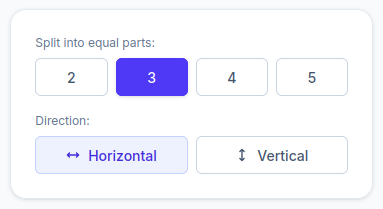
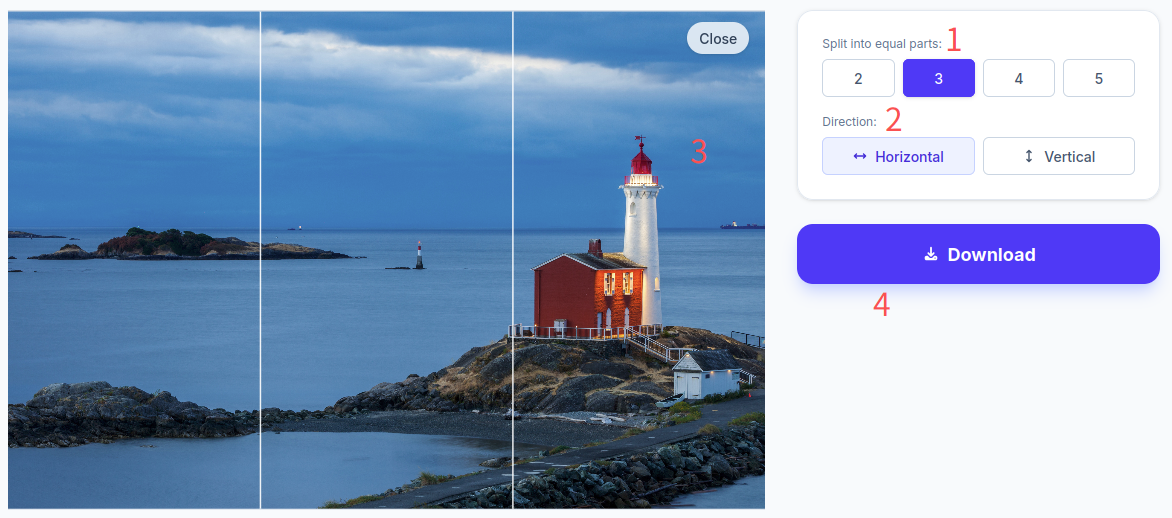
Split into equal parts:
Direction:
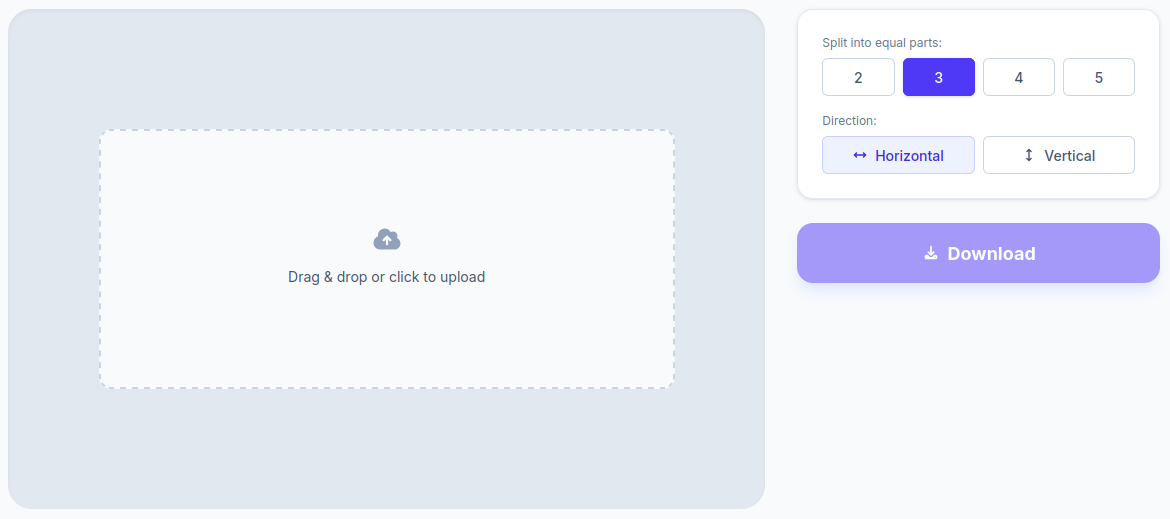
Drag & drop or click to upload
Why I Built This Image Splitter
The core functionality of this web page isn’t rocket science. It simply takes a photo and allows you to divide an image equally into 2, 3, 4, or 5 sections. However, I realized that we desperately need a clean, responsive, and straightforward tool for this exact task.
How did I do this in the past? Before developing this page myself, every time I needed to split an image into equal parts, I fired up Photoshop. I had to manually calculate the exact width and height, punch numbers into a calculator, and carefully slice the photo block by block. A single picture would easily eat up 10 to 15 minutes of my time. It was incredibly inefficient.
I tried looking for existing alternatives, both web-based and local software. The result? Most online tools have disastrously cluttered interfaces. I would spend ages just trying to find the basic feature I needed, or I’d have to click through three or four separate pages just to split a photo.
Desktop software was even more absurd. I just needed to split an image in half or into a few chunks, but these programs forced me to download massive, overly complex applications packed with features I’d never use. I’d install a huge file, use the slice tool once, uninstall it so it wouldn’t take up space, and then have to reinstall it months later. It was a maddening cycle.
As a former programmer, I decided it was time to build a dedicated tool to help people who share this exact frustration. It’s a seemingly minor problem, but solving it dramatically improves workflow efficiency.
How Do I Use This Tool
While you can use this tool to split an image into multiple pieces for just about anything, here are the two scenarios I use it for the most:
1. The Perfect Instagram Carousel Maker
Sometimes you have an ultra-wide panoramic photo. If you post it as a single image, it gets compressed so much that nobody can see the details. My solution is to use this image splitter for Instagram. By slicing the photo into equal-width blocks, you can post it as a seamless carousel. Users can easily swipe left to view the full picture in high definition.
It actually makes for a really engaging social media post! Once, on a family trip, I took a massive 360-degree panoramic shot where everyone was making a goofy face. I decided to split the photo for Instagram. With every swipe, my followers saw a different funny expression. It was highly interactive, and that Instagram split image post got a ton of likes. Whether you want to split an image into 3 or split an image into 4, this is the perfect tool for your feed.
2. PowerPoint Presentations and Pitch Decks
I frequently design PPT presentations. Sometimes, I need to break a picture down into distinct blocks, applying unique animations, artistic effects, or decorative borders to each individual piece.
I used to rely on PowerPoint’s native cropping tool to split an image, but the cuts were rarely precise. Now, I use my own tool to split an image into 4 equal parts (or however many I need) before importing them into my slides. It’s incredibly fast, 100% accurate, and the final result looks fantastic.
Beyond these two examples, I’m sure there are countless other creative ways to use this image splitter free of hassle. I hope it saves you time and saves you from the headache of manual photo slicing.
Frequently Asked Questions (FAQ)
Are my photos uploaded to a remote server?
Absolutely not. Personally, I absolutely hate having my personal files—sensitive or not—uploaded to remote servers, especially in the modern era where AI bots are constantly scraping data.
That’s why I designed this tool to process everything locally. Whether you are using it as a PNG splitter or a JPG splitter, all the processing happens entirely within your web browser. Nothing is ever uploaded to my servers. The moment you close the webpage, all your imported images are instantly and permanently cleared from your browser’s memory.
What image formats and sizes are supported?
The tool fully supports standard formats, acting seamlessly as both a JPG splitter and a PNG splitter. In terms of size limits, it can handle files up to 10MB with a maximum resolution of 4000 × 4000 pixels. This comfortably covers almost all photos taken with modern smartphones.
Can I split an image into multiple pages with exact, custom dimensions instead of equal parts?
This specific page is strictly designed to split an image into equal parts (like standard horizontal or vertical equal slices). However, if you need granular control over the exact pixel width and height of every single block, you should check out the Crop Page on my website, which offers that precise functionality!