Resize Image Online
Resize an image to any dimensions using fixed or free aspect ratio, by absolute size or percentage.
Width
Height
Drag & drop or click to upload
Why I Built the Tool to Resize Image Online
Let’s be honest: adjusting image sizes is probably my most frequently used editing feature. Whether you are prepping website banners or trying to resize image for Instagram without cropping, getting the perfect dimensions is a daily necessity. However, my past experiences with traditional tools left a lot to be desired.
The Problem with Traditional Desktop Software
In the early days, I relied on local desktop applications—like default system image viewers or heavyweights like Photoshop—to scale my visuals. But the user experience was incredibly frustrating.
Whenever I needed to tweak a picture, I’d be hit with a clunky dialogue box. I had to type in raw numbers, adjust the aspect ratio, or manually resize image pixels, hit the “OK” button, and only then see the final result.
The biggest pain point? The lack of a real-time preview. Because the pop-up blocked the canvas, I couldn’t see the changes until I applied them. If I tweaked it too much, I had to undo it and start the tedious guessing game all over again. I kept wondering: Why do we need annoying pop-ups just to scale a picture? Why can’t it be instant?
A Real-Time, Seamless Editing Experience
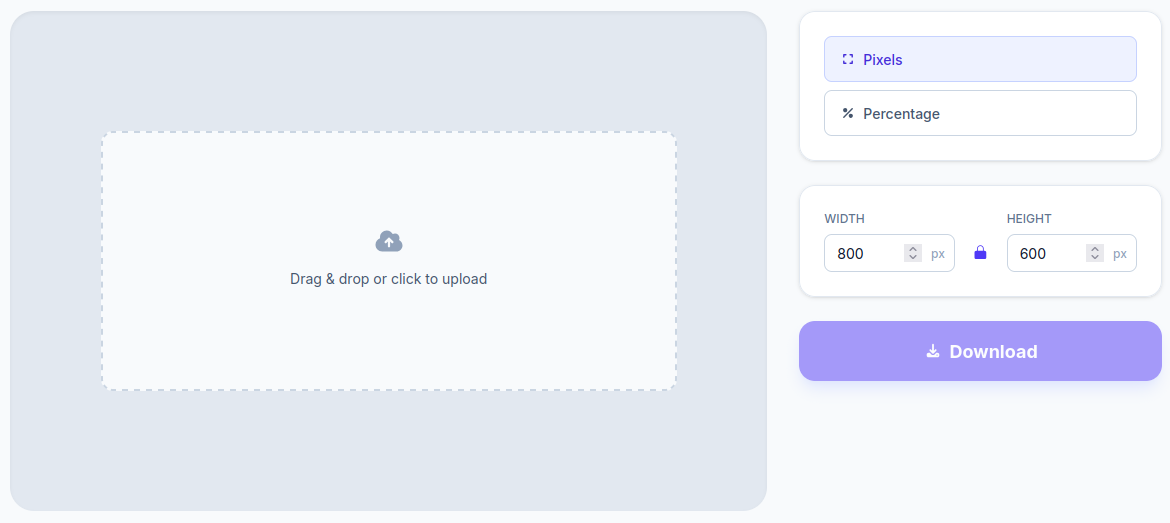
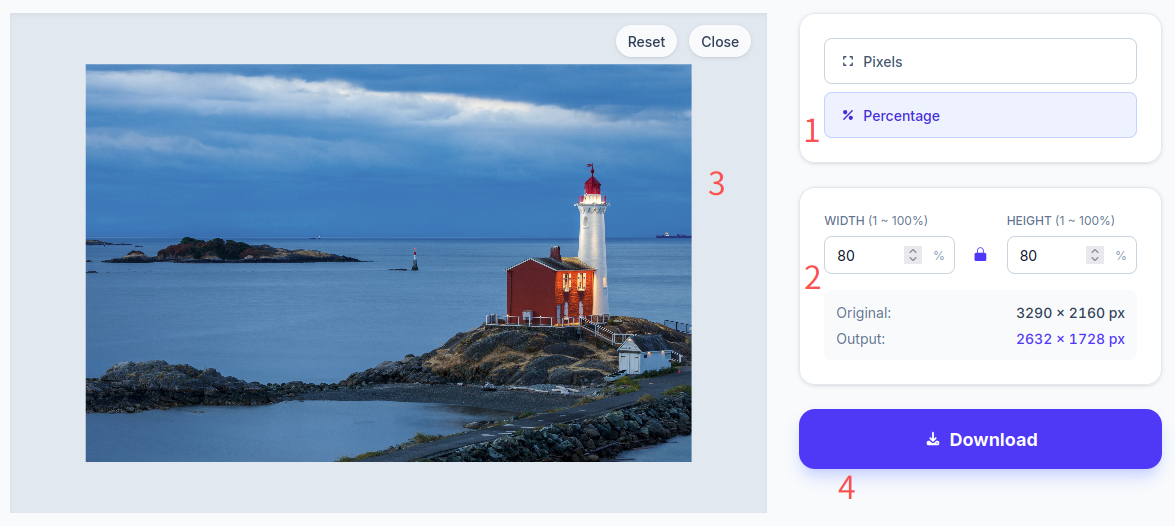
That frustration is exactly why I developed this real-time web tool. If you need to resize image online, my page lets you see every adjustment instantly. You can tell at a glance if your photo is looking too stretched or too squashed.
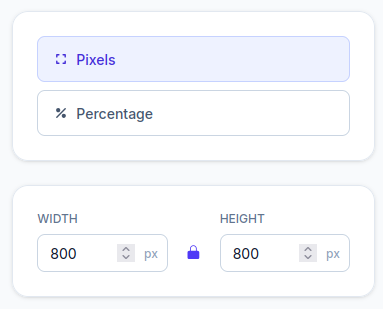
Furthermore, I engineered the percentage and pixel values to sync automatically:
- Smart Calculation: If you scale a photo down to 90%, and then decide you want to fine-tune the exact dimensions, simply switch to the numeric input. The tool has already calculated the exact width and height for you.
- One-Click Aspect Ratio: Locking or unlocking the aspect ratio requires just a single click, with changes applied to your preview immediately.
For my own workflow, this has massively boosted my efficiency.
Why Choose a Web App?
I know that dedicated graphic design software offers similar features. But downloading and installing hundreds of megabytes of bloatware just to use a single cropping or scaling feature—only to uninstall it later—is a massive waste of time.
I wanted a lightweight, accessible hub where anyone can resize image free of charge, right in their web browser. No installations, no heavy background processes—just pure, instant functionality focused entirely on adjusting image dimensions.
Best Practices: How to Resize Image
There is one crucial detail I need to clarify about this tool: its maximum output limit is the exact size of your original file. It will not let you enlarge a photo beyond its native resolution.
Why? Because forcing a smaller image to stretch larger simply creates a blurry, pixelated mess.
If you need a larger picture, my professional recommendation is to first run it through a dedicated lossless AI upscaler to increase the base resolution. Once it’s large enough, you can bring it back here to scale it down to your exact specifications. By only allowing downscaling within the original resolution limits, we ensure that you resize image without losing quality. As long as your original shot is crisp, your adjusted output will be perfectly sharp.
Frequently Asked Questions (FAQ)
Are my photos uploaded to a cloud server?
No, your privacy is completely secure. All image processing happens locally right inside your web browser. We do not upload, process, or store your files on any cloud servers. The moment you close the webpage, your uploaded photos are instantly cleared from your device’s active memory.
What are the limitations on file size, resolution, and image formats?
There are no strict, rigid limits, but the tool is highly optimized for standard web formats like JPG and PNG. For the smoothest performance, we recommend keeping file sizes under 10MB and image dimensions within 4000 × 4000 pixels. Basically, the everyday photos you snap on your smartphone are fully supported.
Can I use this to crop out a specific person or object instead of resizing the whole picture?
This specific tool is designed purely for scaling overall image dimensions. If you don’t want to change the whole size but instead need to extract a specific section (or set a custom focal point), please check out the dedicated features on our Crop Page.