I’m sure everyone has run into this at some point: you take a photo with your phone that you love and want to set it as your computer wallpaper; or you shoot a stunning horizontal photo with your camera and want to use it as your phone wallpaper.
But if you just force it and set it as is, the result is usually terrible. Either it gets cropped into a mess, or the main subject is positioned awkwardly — it just looks off.
Today, I’ll share how to use my website to turn a single photo into wallpapers that fit perfectly on your phone, tablet, and computer. It’s not hard — just follow the steps.
1. First, know the best aspect ratios for each device
Different devices work best with different aspect ratios. Keep these numbers in mind:
- Computer: 16:9 is best
- Phone: 9:16 is best (the exact opposite of the computer)
- iPad (Apple tablet): 4:3 is best
- Android tablet: 6:10 is best
If you only have an iPad, just create a 4:3 tablet wallpaper — no need to worry about the others.
2. Workflow: the approach differs for horizontal and vertical photos
Scenario 1: Your original photo is horizontal (landscape orientation)
Start with the computer wallpaper (16:9) and the tablet wallpaper (4:3). Once those are done, use the website’s Crop Page to crop a 9:16 vertical phone wallpaper from the horizontal image.
However, I often run into this issue: when I try to crop a beautiful horizontal photo into a 9:16 vertical composition, the main subject ends up looking way too large, and the whole image feels cramped and unattractive.
My solution: I use AI to extend the image vertically — adding content above and below — so it becomes a square (1:1) image. In other words, I let AI automatically “fill in” the missing areas above and below, turning the horizontal photo into a square. Then I use the 9:16 crop frame to select the area I want. The subject becomes smaller and the composition feels much more balanced.
Scenario 2: Your original photo is vertical (portrait orientation)
Here, you reverse the order: start with the phone wallpaper (9:16) first, then create the computer wallpaper (16:9) and tablet wallpaper (4:3).
A similar problem arises: cropping a vertical photo directly into 4:3 or 16:9 results in a very small area with poor clarity. My fix: use AI to extend the image horizontally to the left and right, turning it into a square image as well. Then use the website’s Crop Page to crop it into a horizontal wallpaper. The result is much better.
3. A few cropping tips to make your wallpapers look even better
Phone wallpaper
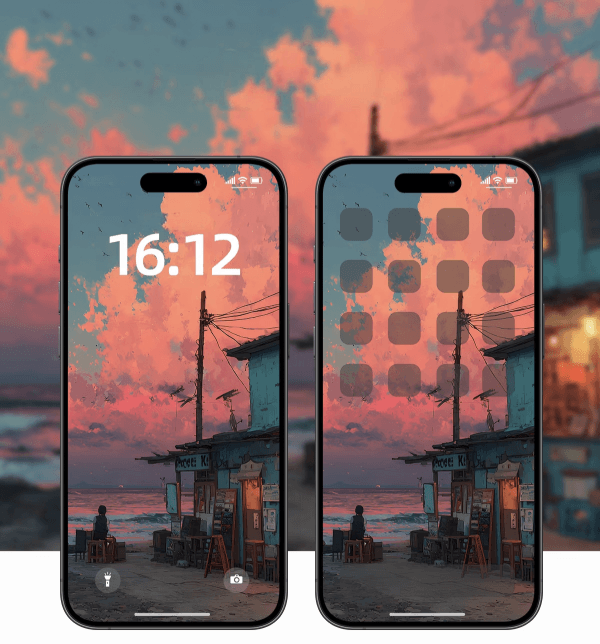
- Top 10%: Don’t place any important subject here. This area is almost always covered by the status bar — time, battery, signal icons.
- Bottom 20%: Also avoid putting anything crucial here. This is where your app icons sit, and they’ll block the view.
- Sweet spot: Position your main subject in the upper-middle part of the image. That way, nothing gets covered, and it looks the most pleasing.
Tablet wallpaper (iPad / Android)
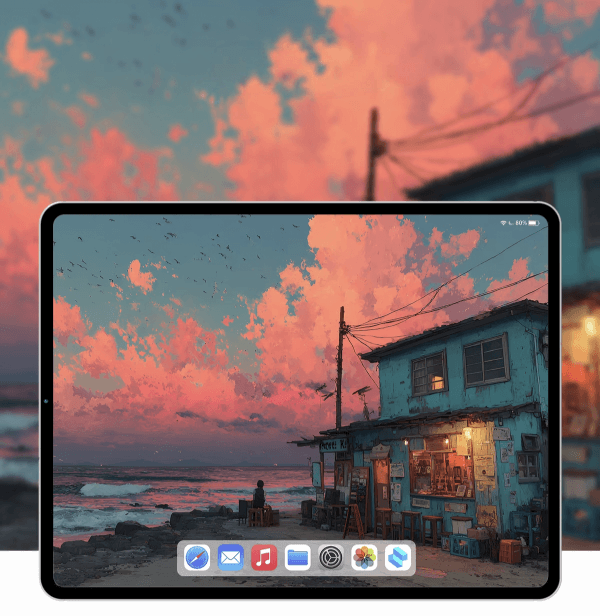
Tablet wallpapers are much simpler. The best approach is to center your subject and leave plenty of empty space around it. This gives you the cleanest, most beautiful result.
Computer wallpaper
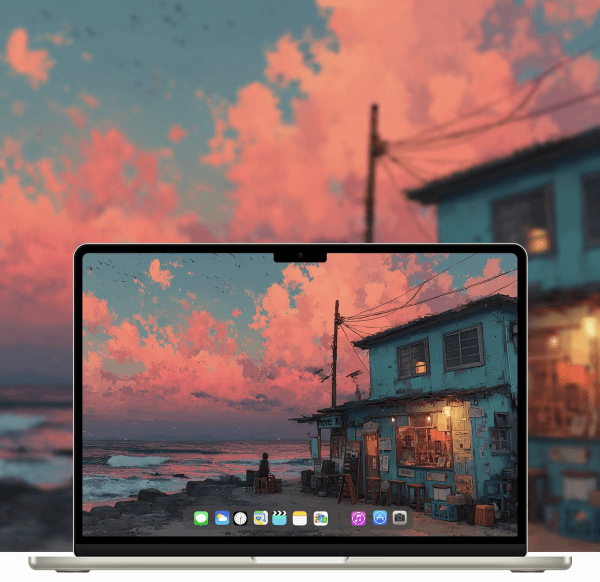
Computer wallpapers require you to consider two cases: Mac and Windows, because their default icon positions differ.
- Mac: icons are on the right by default
- Windows: icons are on the left by default
So you need to keep your main subject away from that side, or it’ll be hidden behind the icons.
Also, whether you’re on Mac or Windows, avoid putting important elements in the bottom 10% of the wallpaper. That’s where the Dock or taskbar sits, and it will cover them up.
Final thoughts
I hope you’ll all use the Crop Page on our website to turn your favorite photos into beautiful wallpapers you can enjoy every day.